Profile
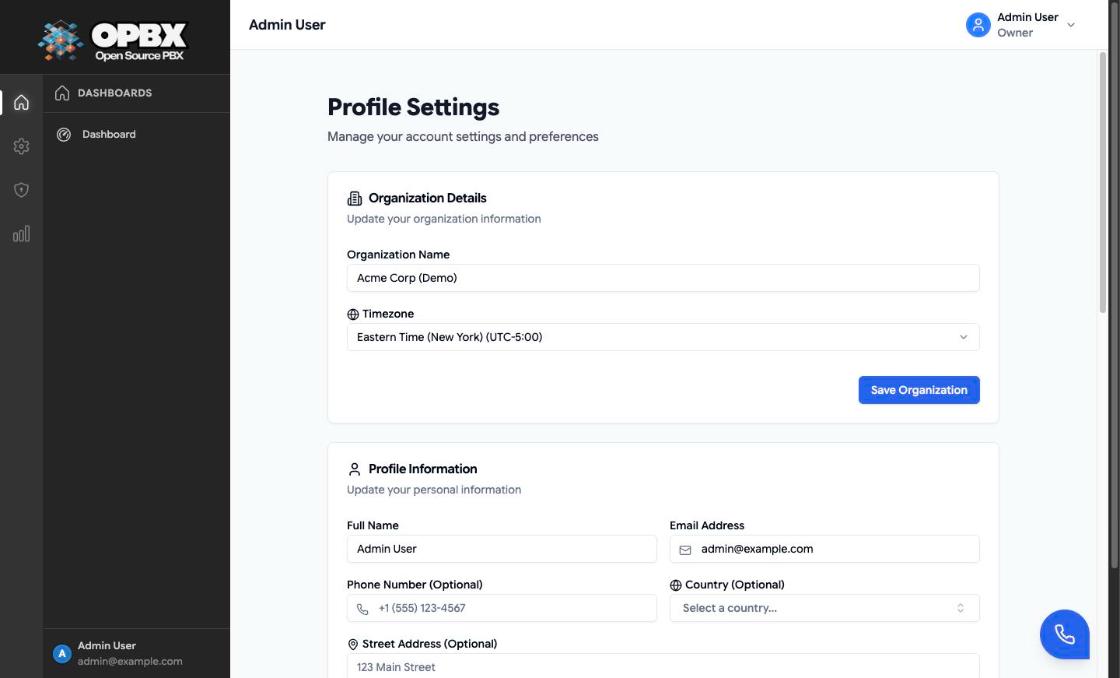
The Profile page (Profile Settings) is where every signed-in user manages their own account: name, email and contact details, password, and linked social accounts. The Owner also edits the organization's name and time zone here. Users who have a PBX extension also see their Extension Number on the Profile Information card.
Permissions
| Section | Owner | PBX Admin | PBX User | Reporter | Supervisor |
|---|---|---|---|---|---|
| Organization Details: view | Yes | Yes | Yes | Yes | Yes |
| Organization Details: edit | Yes | No | No | No | No |
| Profile Information: edit your own | Yes | Yes | Yes | Yes | Yes |
| Change Password | Yes | Yes | Yes | Yes | Yes |
| Linked Accounts (when Auth0 is configured) | Yes | Yes | Yes | Yes | Yes |
For everyone except the Owner, the Organization Details fields are disabled, the Save Organization button is hidden, and the card says "Only organization owners can edit these settings". A platform manager operating as an organization acts as its Owner.
Open your profile
Who can do this: every signed-in user.
- Click your name at the top right.
- Choose Profile.
The Profile Settings page opens with the Organization Details, Profile Information and Change Password cards, and Linked Accounts when Auth0 sign-in is configured.
Rename the organization or change its time zone
Who can do this: Owner.
- Open your profile.
- In Organization Details, change Organization Name or pick a Timezone.
- Click Save Organization.
The toast "Organization updated successfully" appears. If nothing changed, the toast says "Organization is already up to date".
| Field | Limits | Notes |
|---|---|---|
| Organization Name | 2 to 255 characters | The name shown for the organization |
| Timezone | A valid time zone; the list has 56 entries grouped by Americas, Europe, Asia, Africa, Australia, Pacific and UTC | The organization's default time zone |
Business-hours schedules and auto-dialer campaigns have their own time zone setting; changing the organization's time zone does not change them.
Edit your profile
Who can do this: every signed-in user, for their own account.
- Open your profile.
- In Profile Information, change the fields you need (see the table).
- Click Save Profile.
The toast "Profile updated successfully" appears and the form shows the values the server stored. Only changed fields are sent; if nothing changed, the toast says "Profile is already up to date". An email address already used by another account is refused with "This email address is already in use."
| Field | Required | Limits | Notes |
|---|---|---|---|
| Full Name | Yes | 2 to 255 characters | |
| Email Address | Yes | Valid email, up to 255 characters, not used by any other account | Used to sign in. If you link social accounts, they must use the same email |
| Phone Number (Optional) | No | Up to 20 characters | |
| Country (Optional) | No | Picked from a searchable list | |
| Street Address (Optional) | No | Up to 500 characters | |
| City (Optional) | No | Up to 100 characters | |
| State/Province (Optional) | No | Up to 100 characters | |
| Postal Code (Optional) | No | Up to 20 characters | |
| Role | — | — | Shown as a badge. Nobody can change their own role here: the Owner sees "You cannot change your own role.", other roles see "Contact your organization owner to change your role" |
| Extension Number | — | — | Shown only when an extension is assigned to you; read-only |
To change another user's role, use the Users page.
Change your password
Who can do this: every signed-in user, for their own account.
- Open your profile.
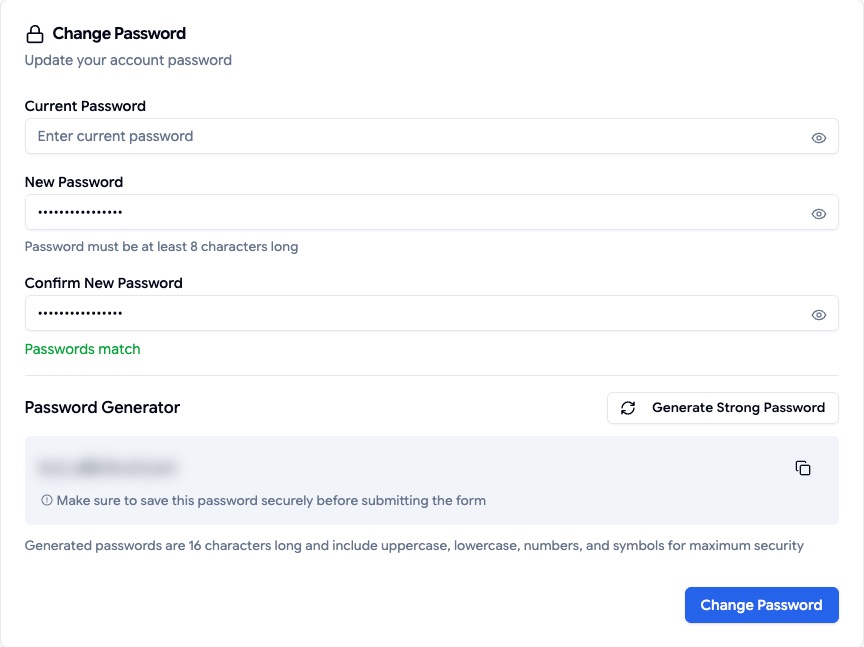
- In Change Password, enter your Current Password.
- Enter the New Password and repeat it in Confirm New Password. Under the confirmation field, "Passwords match" or "Passwords don't match" updates as you type. The eye buttons show or hide each field.
- Optionally, under Password Generator, click Generate Strong Password. It fills both fields with a random 16-character password and shows it with a copy button ("Password copied to clipboard") and the reminder "Make sure to save this password securely before submitting the form".
- Click Change Password.
The toast "Password changed successfully" appears and the form is cleared. Every API token of your account is revoked, including the session you are using: the next page you open or action you take sends you back to the login page, where you sign in with the new password. Scripts and other sessions that use a token of your account must sign in again too.
The new password must have at least 8 characters, upper- and lower-case letters, a number and a symbol. The form only checks the length; the other rules are checked when you submit.
| Message | Meaning |
|---|---|
| The current password is incorrect. | Wrong current password |
| Password confirmation does not match. | The two new-password fields differ |
| The new password must contain… | A missing upper/lower case letter, number or symbol |
The endpoint is rate limited more strictly than the rest of the API.
Accounts created through a social sign-in, a join request or an invitation have a random password nobody knows. Use Linked Accounts to sign in, or ask an administrator to set a password on the Users page.
Link a social account
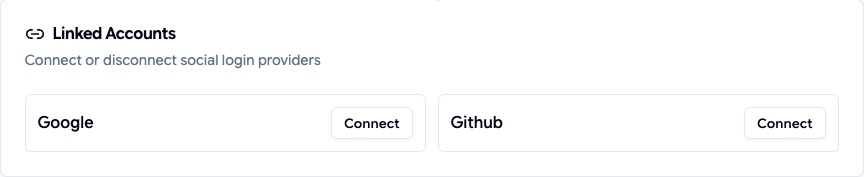
Who can do this: every signed-in user, when Auth0 sign-in is configured for the deployment (OPBX_SAAS_ENABLED=true). Otherwise the Linked Accounts card is not shown.
- Open your profile.
- In Linked Accounts, click Connect next to the provider.
- Sign in at the provider with the same email as your OPBX account.
You come back to the profile with the provider linked; its button now reads Disconnect. The card lists the providers configured for the deployment, except Microsoft, Facebook and X, which it never shows.
See Auth0 Syndicated Authentication for the rules and error messages.
Unlink a social account
Who can do this: every signed-in user, for their own linked accounts.
- Open your profile.
- In Linked Accounts, click Disconnect next to the provider.
The toast "Account unlinked." appears and the button changes back to Connect. Your account and password are not affected.
Related API endpoints
| Method | Endpoint | Purpose |
|---|---|---|
| GET | /v1/profile | Your profile, linked accounts and organization |
| PUT | /v1/profile | Update your name, email and contact details |
| PUT | /v1/profile/password | Change your password (stricter rate limit; revokes all your tokens) |
| PUT | /v1/profile/organization | Update the organization name and time zone (Owner; stricter rate limit) |
| POST | /v1/auth/auth0/link, /v1/auth/auth0/unlink | Link or unlink a social account |
See the OPBX REST API reference for full schemas.
Related pages
- Users — roles and other users' accounts
- Auth0 Syndicated Authentication — social sign-in and linking
- Navigating the Interface — the user menu