Queue Reports
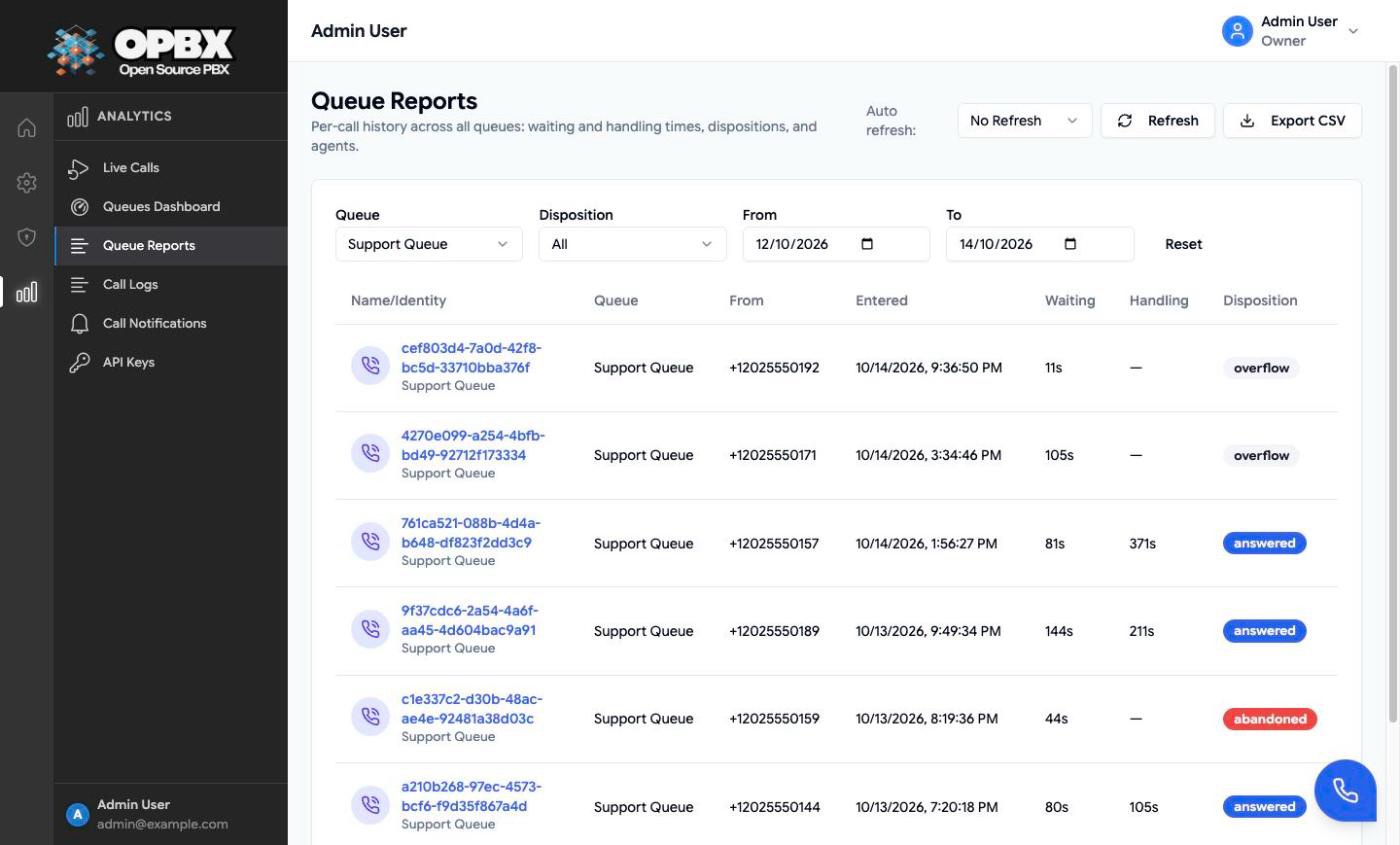
Queue Reports lists every call that entered a call queue, one row per call, with its waiting time, handling time and disposition (answered, abandoned or overflow). Filter the list by queue, disposition and date, open a call's CDR details, and export the rows to CSV.
Permissions
| Action | Owner | PBX Admin | PBX User | Reporter | Supervisor |
|---|---|---|---|---|---|
| See Queue Reports in the sidebar | Yes | Yes | No | Yes | No |
| Read queue call reports (API) | Yes | Yes | Yes | Yes | No |
PBX Users can read the reports through the API, but the sidebar does not show the page to them.
Workflows
Report on queue calls
Who can do this: Owner, PBX Admin, Reporter.
- Open Queue Reports in the sidebar (under Analytics).
- Filter by Queue, Disposition (Answered, Abandoned, Overflow) and the From and To dates (the To day is included in full). Reset clears the filters.
- Optionally set Auto refresh: (No Refresh, 5 Seconds to 60 Seconds) or click Refresh.
- Click a row to open the call's CDR details.
- Click Export CSV to download the filtered rows.
The table shows the call ID, queue, from number, entered time, waiting time, handling time and disposition. The CSV also has the to number, answered, abandoned and ended times and the answering agent's user ID.
Reporting
Queue data is reported in three places:
- Queue Reports: one row per call with waiting time, handling time and disposition (answered, abandoned or overflow), with CSV export. See Report on queue calls.
- Statistics tab: minimum, maximum, average and standard deviation of waiting and handling times, and totals for the last 24 hours. See View queue statistics.
- Live tab: handled and abandoned counts over the last 60 minutes (the API also returns 15-minute, 30-minute and 24-hour windows). See Watch a queue live.
Related modules
- Call Queues — create and configure queues
- Live View — a queue's live counters and 24-hour statistics
- Queues Dashboard — all queues on one screen
- Call Logs — every call, queued or not