Call Queues
A call queue holds incoming callers in first-in, first-out order with music on hold, and offers each caller to an agent when one is free. Unlike a ring group, a queue is stateful: agents log in and out, finished calls leave a wrap-up pause, callers that wait too long overflow to a fallback, and every call is measured.
In this section
- Agents — agent states, and how agents log in and out of a queue
- Live View — a queue's Live and Statistics tabs
The Queues Dashboard and Queue Reports pages are under Analytics. See Queues Dashboard and Queue Reports.
When to use a queue instead of a ring group
| Ring Group | Call Queue | |
|---|---|---|
| Caller experience | Rings members at once; fallback if nobody answers | Waits on hold with music until an agent is free |
| Agents | Just destinations | Log in and out, have wrap-up time |
| Distribution | Simultaneous, round-robin or sequential | Ring all, round robin, least talk time, fewest calls |
| Statistics | Call logs only | Waiting and handling times, answered, abandoned and overflow counts, per-call reports |
Purpose
Use a queue for a support or sales line where you need to know how long callers wait and how many were lost.
Prerequisites
Before you create a queue, prepare these:
- Agents. Each agent is an active user with an extension assigned. A user without an extension is not offered in the agent list. See Users and Extensions.
- Hold music (optional). An audio recording with the Hold music tag (set on the Announcements page). Only tagged recordings are offered. See Announcements. Without hold music, waiting callers hear "Please hold the line." between pauses.
- An overflow fallback (optional). Where callers go when they wait too long. It must exist and be active. The default is Hang Up.
Permissions
| Action | Owner | PBX Admin | PBX User | Reporter | Supervisor |
|---|---|---|---|---|---|
| See Call Queues in the sidebar | Yes | Yes | No | Yes | Yes (opening it shows Access denied) |
| View queues, the detail page and statistics | Yes | Yes | Yes (API) | Yes | API only, read-only, for queues where their assigned users (or they) are agents |
| Create, edit, delete, activate or deactivate a queue | Yes | Yes | No | No | No |
| Log any agent in or out (detail page Agents tab) | Yes | Yes | No | No | No |
Change your own agent state (header Queues menu or *45) | If an agent | If an agent | If an agent | If an agent | If an agent |
PBX Users can read queues and reports through the API, but the sidebar does not show the pages to them.
Permissions for the Queues Dashboard, the public wallboard and Queue Reports are on Queues Dashboard and Queue Reports.
Queue behaviour in practice
- A call reaches the queue (from a phone number, an IVR option, a ring group, AI load balancer or call queue fallback, business hours or a Call Queue extension).
- The caller hears the hold music and, if enabled, their position.
- The strategy picks an agent, whose extension rings for the agent ring timeout.
- If the agent answers, the call connects and is recorded as answered.
- If nobody answers, the offer moves on to the next agent.
- A caller who waits longer than the max wait is sent to the fallback and the call is recorded as overflow.
- A caller who hangs up is recorded as abandoned.
When a call is requeued (for example after an offer is not answered), it keeps its original position and its original enqueue time. A requeued call that is already past the max wait overflows on its next check.
If the agent hangs up after the caller has joined, the call ends.
Workflows
Create a call queue
Who can do this: Owner, PBX Admin.
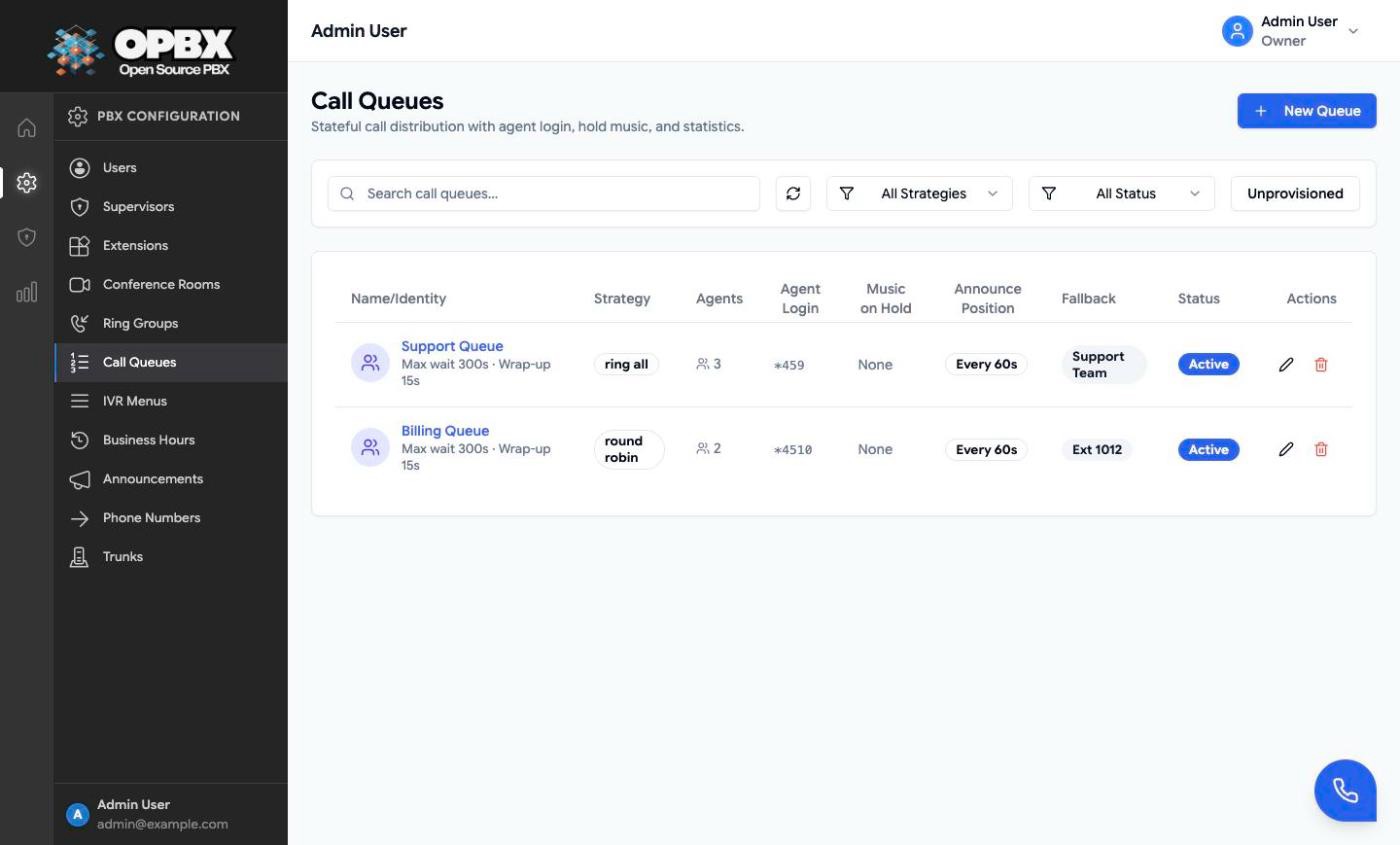
- Open Call Queues in the sidebar (under PBX Configuration).
- Click New Queue. The New Call Queue dialog opens.
- Enter the Name and choose the Agent Selection Strategy.
- Set Agent Ring Timeout, Max Wait and Wrap-up.
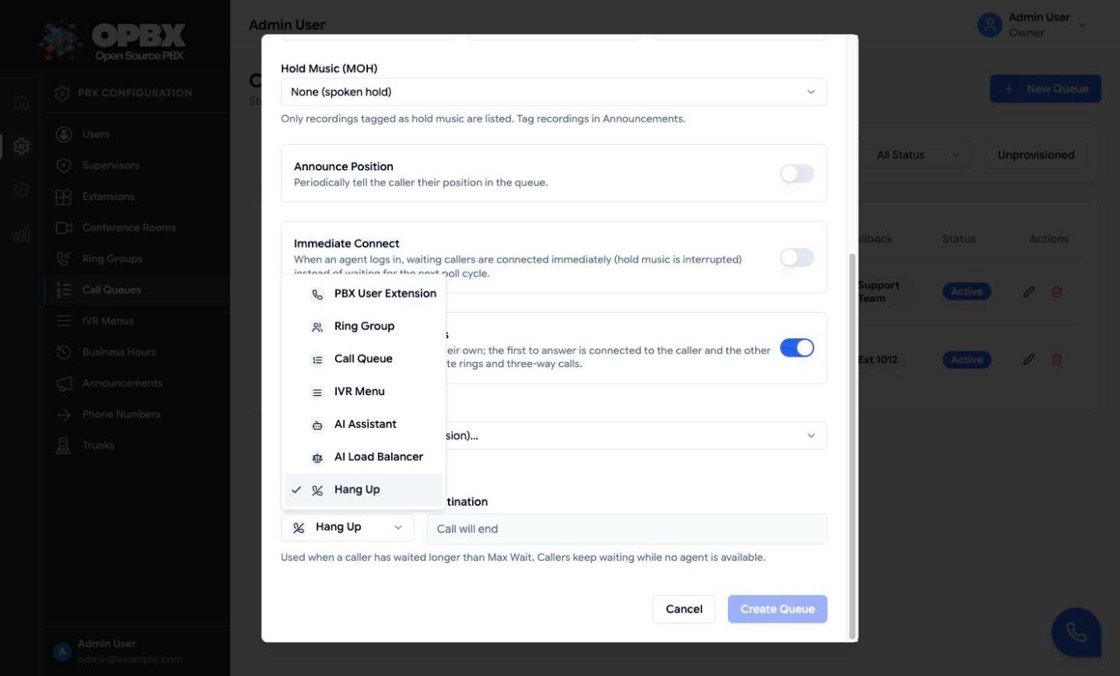
- Optionally choose Hold Music (MOH), switch on Announce Position (then pick the interval and language) and Immediate Connect. For Ring All, Ring Agents in Separate Calls is already on; switch it off only if you need it.
- Under Agents, pick each agent from Add an agent (user with extension)…. Each one appears as a chip; click × on a chip to remove it.
- Under Overflow Fallback, choose the type and the destination. The type starts as Hang Up, and the destination reads "Call will end": an overflowing caller is hung up. For Call Queue, pick the target queue in the destination list.
- Click Create Queue. The button stays disabled until the queue has a name and at least one agent.
The toast "Call queue created" appears and the queue is listed as Active. It becomes available as a destination everywhere else in OPBX. Agents are not logged in automatically; each agent logs in (see Join a queue as an agent).
Edit a call queue
Who can do this: Owner, PBX Admin.
- On Call Queues, click the edit (pencil) icon on the queue's row. Clicking the row itself opens the detail page.
- Change the settings, agents or fallback in the Edit Call Queue dialog. With a Call Queue fallback, the destination list leaves out the queue you are editing.
- Click Save Changes.
The toast "Call queue updated" appears.
Activate or deactivate a queue
Who can do this: Owner, PBX Admin.
- On Call Queues, click the Active or Inactive badge in the Status column.
The badge switches at once. An inactive queue keeps its settings but does not accept calls.
Disconnect the overflow fallback
Who can do this: Owner, PBX Admin.
- Open the queue with the edit (pencil) icon.
- Under Overflow Fallback, choose Disconnect.
- Click Save Changes.
The fallback now stores Destination unavailable, and the queue shows the Unprovisioned badge in the list and the dialog title. Create screens never offer Disconnect. A fallback also becomes Destination unavailable when a user is deleted and the fallback pointed at that user's extension.
Find a call queue
Who can do this: Owner, PBX Admin, Reporter.
- Open Call Queues in the sidebar.
- Type in Search call queues... to filter by name or description.
- Narrow the list with the strategy filter (All Strategies, Ring All, Round Robin, Least Talk Time, Fewest Calls), the status filter (All Status, Active, Inactive) and the Unprovisioned button.
- Click the refresh button to reload the list.
When no queue matches, the list reads "No call queues found" and "Try adjusting your filters".
Find unprovisioned queues
Who can do this: Owner, PBX Admin, Reporter.
- On Call Queues, click the Unprovisioned button in the filter bar.
Only queues whose fallback is Destination unavailable are listed. Click Unprovisioned again to show all queues.
Delete a call queue
Who can do this: Owner, PBX Admin.
- On Call Queues, click the delete (trash) icon on the queue's row, or click Delete in the Edit Call Queue dialog.
- Confirm with Delete in the Delete call queue dialog.
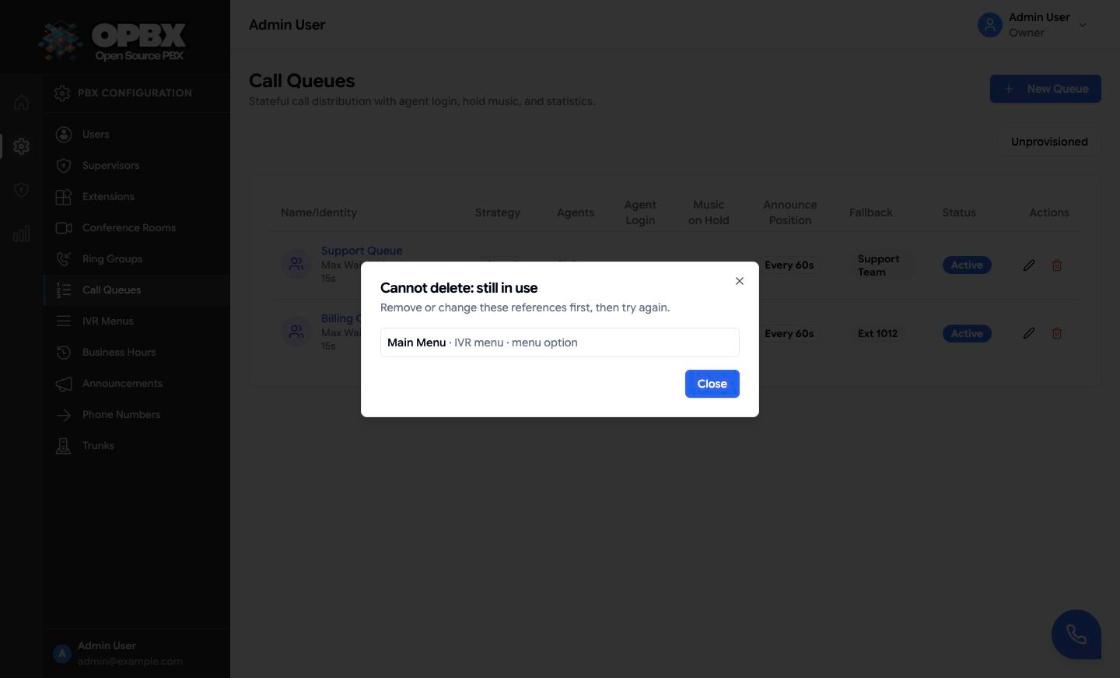
The toast "Call queue deleted" appears and the row disappears. If other configuration still points at the queue, the delete is refused and the Cannot delete: still in use dialog lists every place: phone numbers, IVR options and failovers, ring-group, AI load-balancer and call-queue fallbacks, business-hours actions and extensions of type Call Queue. Change those first, then delete again. Past call records never block a delete.
Queue settings
| Field (dialog label) | Limits and default | Meaning |
|---|---|---|
| Name | 2 to 100 characters; unique within the organization | Shown in lists and the agent menu |
| Agent Selection Strategy | Ring All, Round Robin, Least Talk Time, Fewest Calls. Default: Ring All | How the next agent is chosen (table below) |
| Agent Ring Timeout | 15 to 60 seconds, in steps of 5. Default: 20 | How long one agent's extension rings before the offer moves on |
| Max Wait | 30 to 300 seconds, in steps of 30. Default: 300 | How long a caller may wait before overflowing |
| Wrap-up | 15 to 120 seconds, in steps of 15. Default: 15 | Pause after each answered call before the agent is available again. Zero is not accepted |
| Hold Music (MOH) | An MOH-tagged recording, or None (spoken hold). Default: none | Played to waiting callers |
| Announce Position | Off by default | Tells waiting callers their position at a set interval |
| Announce Position Timeout | Every 15, 30, 60 or 120 seconds in the dialog (the API accepts 10 to 600). Default: 60 | The announcement interval |
| Announce Position Language | Default (English) or a text-to-speech language (API: a code up to 20 characters) | The language of the announcements and of the *45 confirmations |
| Immediate Connect | Off by default | When an agent becomes available while callers wait, connect the next caller straight away (the hold music is interrupted) instead of waiting for the next hold loop |
| Ring Agents in Separate Calls | On by default for a new Ring All queue (existing Ring All queues were switched on too). Shown only for Ring All | Each agent is rung in a call of their own; the first to answer is connected and the others stop ringing. Prevents late rings and three-way calls. If you switch it off, all agents are rung in one call: the call log and CDR then do not show which agent answered (the Extension stays empty) |
| Agents | At least 1, at most 100 active users with extensions | Who takes calls |
| Overflow Fallback | Default: Hang Up. See Fallback | Where overflow calls go |
| Status | Active or Inactive. Set from the list. New queues are Active | Inactive queues do not accept calls: callers hear a short "not available" message |
| Description | API only. Up to 1000 characters | Free text. The dialog does not show it |
Strategies
| Strategy | How the next agent is chosen |
|---|---|
| Ring All | Every available agent is offered the call at once |
| Round Robin | Available agents in turn |
| Least Talk Time | The available agent with the least talk time |
| Fewest Calls | The available agent who has handled the fewest calls |
Agents are always dialed at their extension. Call-forwarding and follow-me settings are not applied to queue offers.
Fallback destination
Overflow (max wait reached) goes to one of these:
| Fallback | Destination |
|---|---|
| PBX User Extension | An extension |
| Ring Group | A ring group |
| IVR Menu | An IVR menu |
| AI Assistant | An AI assistant |
| AI Load Balancer | An AI load balancer |
| Call Queue | Another call queue. The caller joins it as a new caller, at the back of the line, with that queue's hold music, max wait and fallback |
| Hang Up | None: the call ends |
Before a fallback other than Hang Up, the caller hears "We're sorry, but no one is available to take your call. Please hold while we redirect your call." A caller only overflows when the max wait is reached; while no agent is available, callers keep waiting until then.
The fallback must belong to your organization and be active when you save. A queue cannot fall back to itself, and a chain of call queue fallbacks must not lead back to the queue (for example Support → Billing → Support). If the target is inactive or gone when a caller overflows, the call ends. A queue that is another queue's fallback cannot be deleted until that fallback is changed.
API and automation
- REST API: create, read, update and delete queues and agent membership. An update (
PUTorPATCH /v1/call-queues/{id}) changes only the fields it sends; omitted settings and the agent list keep their stored values. Statistics, live state and per-call reports are read-only endpoints. - Scoped API keys: the
call-queuesandqueue-callsresources, with read access meaning GET only. See API Keys. - MCP server: read-only tools
list_call_queues,get_call_queue,get_call_queue_stats,get_call_queue_liveandlist_queue_calls. See MCP Server.
Common errors
| Message (summary) | What it means | What to do |
|---|---|---|
| The hold music recording must belong to your organization. / The selected recording is not tagged as hold music. | The chosen recording is from another organization or lacks the Hold music tag | Choose an MOH-tagged recording of your own |
| Only active users can be queue agents. name is not active | The user is inactive | Activate the user or remove them from the agents |
| Queue agents must have an extension assigned. name has no extension | The user has no extension | Assign an extension to the user first |
| The selected fallback target must be active | The fallback is inactive | Activate it or pick another fallback |
| The fallback call queue id field is required. | Call Queue was chosen without a target queue | Pick the target queue |
| A call queue cannot fall back to itself. | The target is the queue being edited | Pick another queue |
| Fallback loop detected: A -> B -> A. A call queue fallback chain must not return to itself. | The chain of queue fallbacks leads back to this queue | Change one of the fallbacks in the chain |
| Choose a destination | You tried to create a route as "unavailable" | Pick a destination. "Destination unavailable" is only available when editing |
| This call queue is still used by: … | Other configuration points at the queue | Change the listed references, then delete |
Troubleshooting
With the centralized logging stack enabled, every queue event (enqueue, offer, answer, overflow) is searchable by the call's Cloudonix session token. That is the quickest way to follow one caller through a queue.
Common causes of "nobody gets the call":
- No agent is logged in (state Logged Out). The Agents tab of the queue's detail page shows the states. See Agents.
- The agent is already on a call, so presence skips them.
- The agent's extension is not active. Check its status on Extensions.
Related modules
- Ring Groups — a simpler alternative, and a common queue fallback
- IVR Menus — route callers into a queue from a menu option
- Phone Numbers — route a number directly to a queue
- Announcements — hold music
- Agents — agent states and logging in and out
- Live View — a queue's live counters and statistics
- Queues Dashboard — all queues on one screen, and the public wallboard
- Queue Reports — one row per queued call, with CSV export
- Supervisors — supervisors have no Call Queues pages; through the API they can read the queues where their assigned users are agents