Queues Dashboard
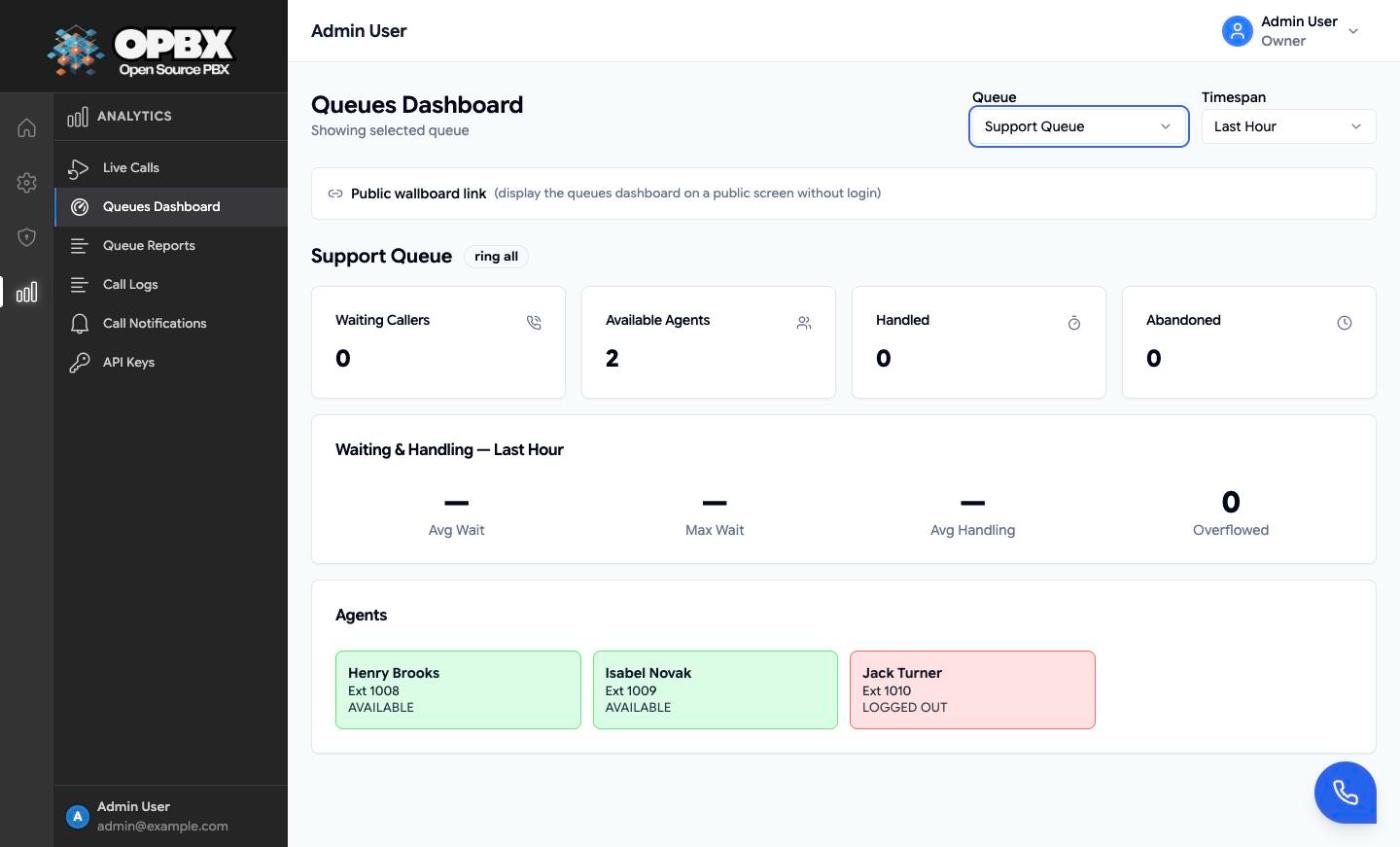
The Queues Dashboard shows all call queues on one screen: each queue's waiting callers, available agents, handled and abandoned counts, and an agent card per agent coloured by state. The public wallboard shows the same dashboard without a login, for example on a wall screen. To watch a single queue in detail, use its Live View.
Permissions
| Action | Owner | PBX Admin | PBX User | Reporter | Supervisor |
|---|---|---|---|---|---|
| See Queues Dashboard in the sidebar | Yes | Yes | No | Yes | No |
| See and regenerate the public wallboard link | Yes | Yes | No | No | No |
Workflows
Use the Queues Dashboard
Who can do this: Owner, PBX Admin, Reporter.
- Open Queues Dashboard in the sidebar (under Analytics).
- Under Queue, keep All Queues (cycle) to rotate through the queues every 30 seconds (the arrow button skips to the next), or pick one queue.
- Under Timespan, choose Last 15 Minutes, Last Hour, Last 6 Hours, Last 12 Hours or Last 24 Hours.
The dashboard shows the queue's waiting callers, available agents, handled and abandoned counts, and an agent card per agent coloured by state.
Share the public wallboard
Who can do this: Owner, PBX Admin.
- On Queues Dashboard, click Public wallboard link to expand it.
- Click the copy icon ("Link copied") or the open-in-new-tab icon.
- To revoke the link, click the regenerate icon. The toast "Public link regenerated - the old link no longer works" appears and the old link stops working at once.
The link has the form /public/queues-dashboard/{token}. Anyone with it can view the queues, agents and statistics without logging in.
Related modules
- Call Queues — create and configure queues
- Live View — one queue's waiting callers and statistics
- Agents — agent states and logging in and out
- Queue Reports — one row per queued call, with CSV export
- Live Calls — every active call