Voicehub SIP Trunking
Using Voicehub Dashboard
This method uses the Voicehub dashboard and will allow you to setup your Cloudonix connection in Voicehub.
Logon to your Voicehub dashboard, and select the SIP Trunking menu option (located in the Channels section).
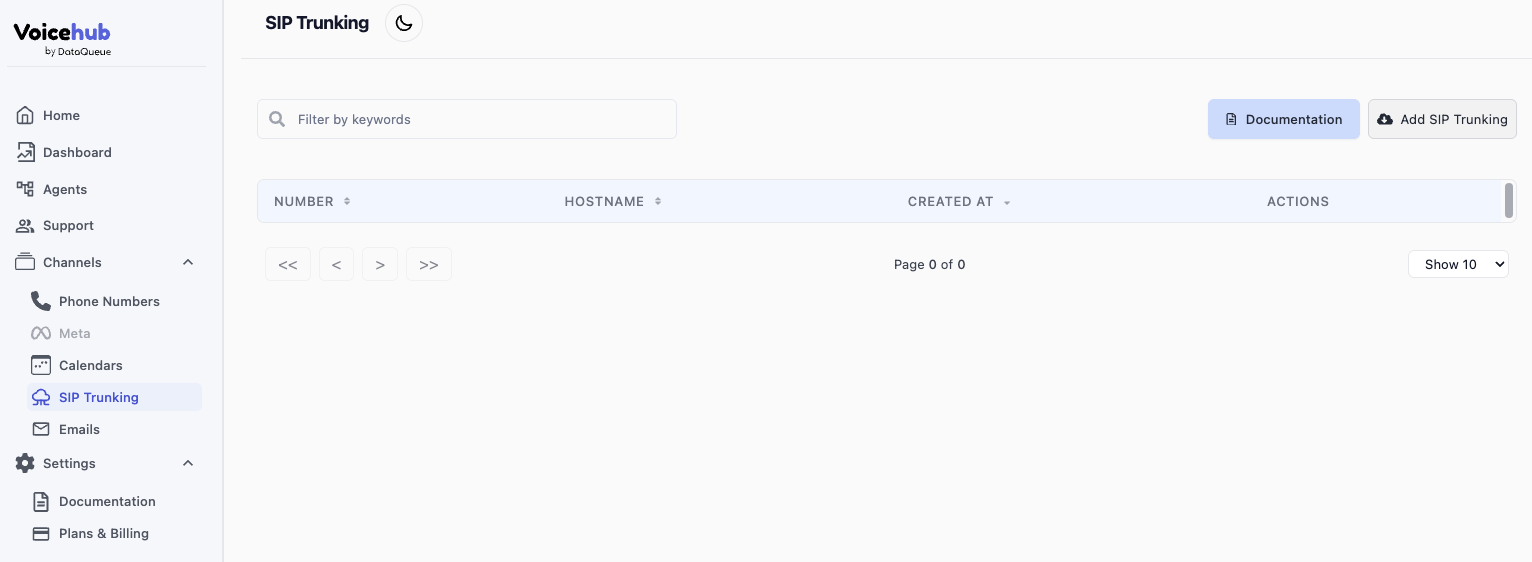
Click the Add SIP Trunking button, the following dialog will appear:
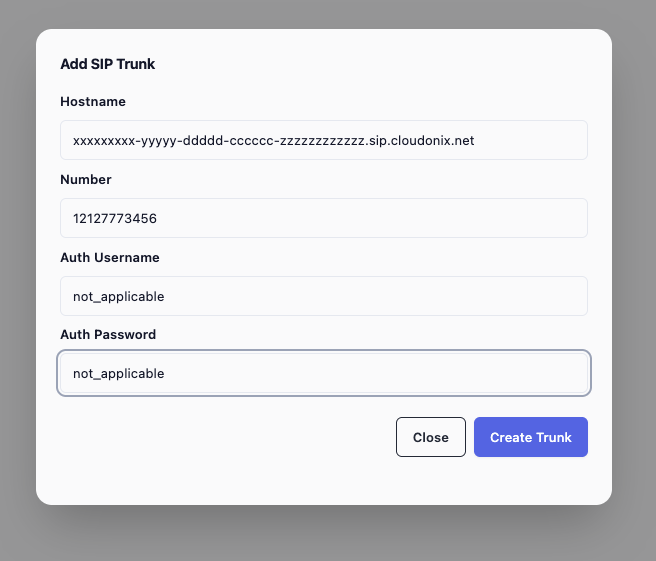
Fill the dialog as detailed below:
Pay attention!
While Cloudonix doesn't require username/password authentication to be enabled here, you MUST enter something in these fields, to fully configure your Cloudonix integration with Voicehub.
| Item | Description | Example |
|---|---|---|
| Hostname | Your Cloudonix inbound SIP Hostname. | aaaaaaaa-bbbb-cccc-dddd-xxxxxxxxxx.sip.cloudonix.net |
| Number | The phone number associated with this SIP trunk. | 12127773456 |
| Auth Username | A username for authentication purposes - NOT REQUIRED. | not_applicable |
| Auth Password | A password for authentication purposes - NOT REQUIRED. | not_applicable |
Voice Application Usage
To route inbound calls to Voicehub, you will need to use the <Dial><Service> voice application verb. Here is a small example:
<Response>
  <Dial>
    <Service provider="voicehub">+12127773456</Service>
  </Dial>
</Response>